VidCove vs YouTube Kids: An Honest Comparison
I built VidCove because YouTube Kids didn't work for my family. But YouTube Kids isn't a bad product — it's just built on a fundamentally different philosophy. Here's where each one shines and where each one falls short.
I built VidCove, so take everything here with that in mind. I've tried to be as fair as possible about YouTube Kids' strengths — it does several things well, and for some families it's the right choice. My goal is to help you understand the real differences so you can decide for yourself.
The fundamental difference
YouTube Kids and VidCove solve the same problem — keeping kids safe on YouTube — but they start from opposite assumptions.
YouTube Kids uses algorithmic filtering. It takes the full YouTube library and tries to remove the bad stuff. Google's algorithms, content reviewers, and age-based tiers decide what your child can see. You can further restrict this with "Approved Content Only" mode, but the default experience is algorithm-driven.
VidCove uses parent curation. It starts with nothing and only shows content from channels you've specifically approved. There's no algorithm deciding what's appropriate — you make every call. Your child sees the channels you picked and the videos from those channels. That's it.
Neither approach is wrong. They involve different tradeoffs around control, convenience, and how much trust you place in Google's content filtering versus your own judgment.
The quick comparison
| Feature | YouTube Kids | VidCove |
|---|---|---|
| Content model | Algorithm picks content, parent can restrict | Parent picks content, child watches it |
| Price | Free (ad-supported) | Free tier (1 child, 10 channels) · Premium $7.99/mo |
| Ads | Yes ("family-friendly" ads) | Minimal to none |
| YouTube Shorts | Present — even in Approved Content mode, approved channels include their Shorts | Blocked entirely, even from approved channels |
| Algorithm / recommendations | Yes — drives the experience | None — "For You" is random from your approved channels |
| Per-child channel control | Via "Approved Content Only" mode (buried in settings) | Core feature — each child gets their own channel list |
| Per-video approval | No | Yes (Strict Mode — approve individual videos within a channel) |
| Channel request system | No | Yes — kids can request channels, parents approve or deny |
| Watch activity insights | Basic "Watch It Again" tab | Full watch history, AI activity summaries, weekly email digests |
| Multiple children | Separate profiles (free) | 1 child free, unlimited on Premium |
| Content beyond YouTube | No | Plex integration (movies and TV from your own library) |
| Age range | Under 12 (most kids outgrow it by 8–9; supervised YouTube requires a Google Account) | 2–12+ (no Google Account needed, no age-based restrictions on channels) |
| Platforms | iOS, Android, web, smart TVs, gaming consoles | iOS, Android, web, Android TV, Fire Tablet, Fire TV, Samsung TV, LG TV |
Where YouTube Kids wins
Let me be upfront about this — YouTube Kids has real advantages that VidCove can't match today.
It's free
YouTube Kids is completely free, with no feature limitations based on a paid tier. It's ad-supported, but the ads are reviewed for family-friendliness. For families on a tight budget or who just want a basic safe-enough experience, free matters. VidCove has a free tier (1 child, 10 channels), but the full experience requires a subscription.
Zero setup required
You can download YouTube Kids, pick an age tier, and hand the device to your child in under two minutes. VidCove requires you to create an account, set up a child profile, and add channels before your child sees any content. That upfront investment is the tradeoff you make for full control.
Massive content library by default
YouTube Kids gives your child access to a large, algorithmically-curated library immediately. If you're happy with YouTube's filtering and your child is in the younger age brackets, this can work well enough — especially with search disabled.
Where VidCove wins
You're in control — not an algorithm
This is the core difference. In VidCove, every channel your child sees is one you deliberately approved. There's no algorithm suggesting content, no recommendations leading to unexpected places, and no possibility of your child stumbling into something you didn't intend. YouTube Kids' algorithm has improved significantly, but it's still an algorithm — and algorithms optimize for engagement, not for what you'd choose for your family.
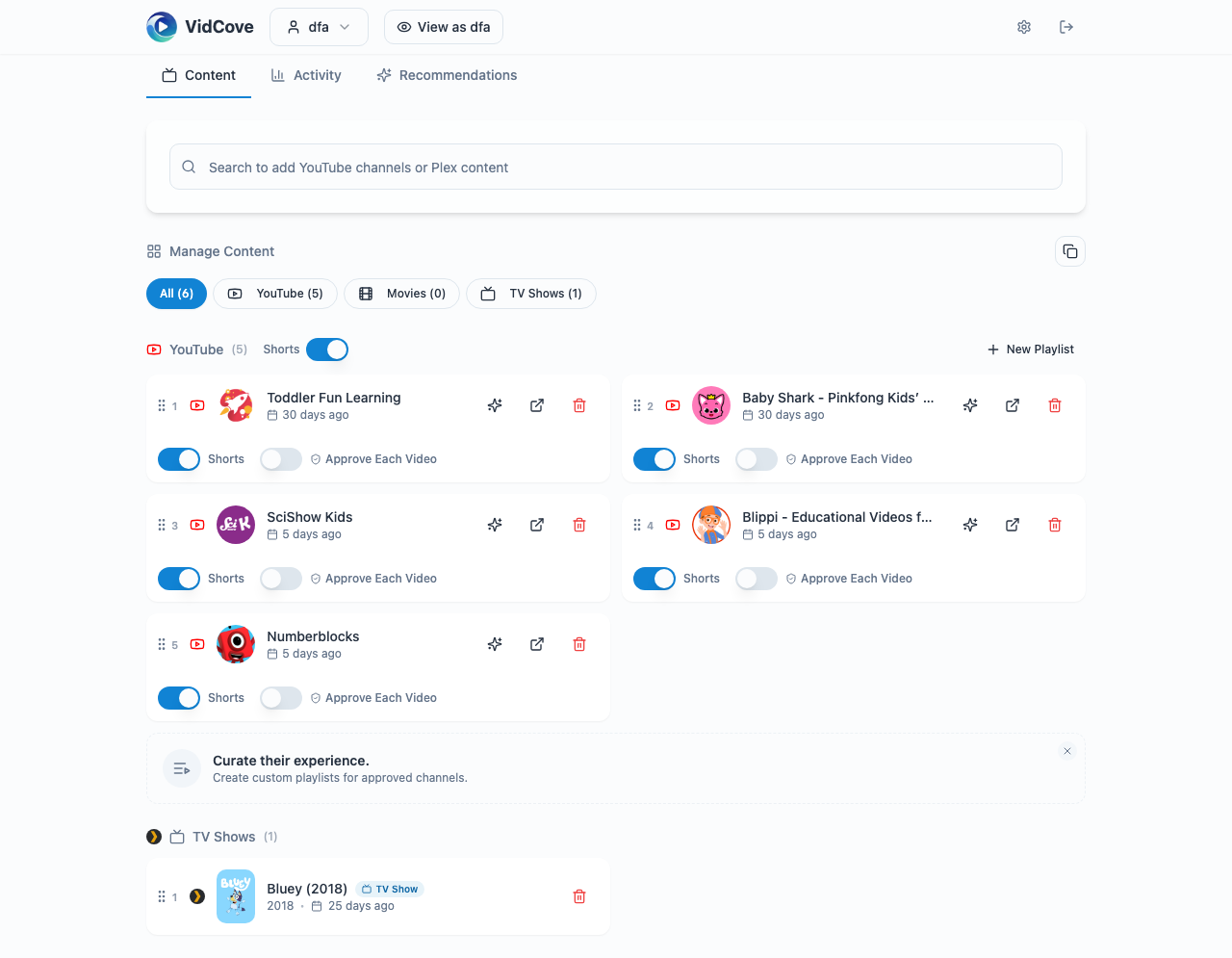
Shorts are gone — completely
YouTube Kids still shows short-form content in its feed, and there's no setting to disable it — even in Approved Content Only mode. If you approve a channel that posts both regular videos and Shorts (which many popular kids' channels do), your child gets the Shorts too. Your only workaround is to skip the channel entirely and manually approve individual long-form videos one by one — an ongoing chore that most parents abandon within weeks.
VidCove strips Shorts out at the platform level. When you approve a channel, your child sees that channel's long-form videos only. No swiping, no infinite scroll, no TikTok-style content mixed in. You don't have to think about it.
Per-video approval when you need it
Some YouTube channels are mostly great but occasionally post something you'd rather your kid not see. VidCove's Strict Mode lets you approve individual videos within a channel — your child only sees the specific videos you've reviewed. YouTube Kids has no equivalent. You either approve a channel or you don't.
Kids can request new channels
When your child discovers a channel they want to watch (from a friend, at school, wherever), they can request it directly in VidCove. You get notified and can review the channel before approving or denying. This turns content management into a conversation instead of a battle. YouTube Kids has no request system — your child has to come tell you, and then you have to navigate back into the parental settings to add it.
Real watch activity insights
VidCove tracks what your child actually watches, for how long, and can generate AI-powered summaries of their viewing patterns. You can get weekly email digests with activity breakdowns. YouTube Kids shows a "Watch It Again" tab, but doesn't give parents meaningful visibility into viewing habits over time.
Plex integration
If your family uses Plex for movies and TV shows, VidCove can pull in your Plex library so your child has YouTube channels and your curated movie/TV collection in one place. YouTube Kids is YouTube only.
The question to ask yourself
The choice between YouTube Kids and VidCove really comes down to one question: how much control do you want?
YouTube Kids is right if...
You're comfortable with Google's algorithm making most content decisions, your child is under 8, you want a completely free and zero-setup experience, and "good enough" filtering meets your comfort level.
VidCove is right if...
You want to choose exactly which channels your child watches, you want Shorts gone completely, you have a tween who's outgrown YouTube Kids but isn't ready for full YouTube, you have multiple kids who need different content, or you want visibility into what they're actually watching.
There's also a middle ground that some parents use: YouTube Kids with "Approved Content Only" mode enabled. This gets you closer to VidCove's philosophy within YouTube's ecosystem. But as I covered in my guide to blocking YouTube Shorts, that mode is buried in settings, only works in the YouTube Kids app, doesn't filter Shorts from approved channels, doesn't offer per-video control, and stops being available the moment your child moves to a supervised YouTube account.
Common questions
Can I use both?
Absolutely. Some families use VidCove as the daily driver and keep YouTube Kids installed for situations where they want a broader content library (like long road trips). They're not mutually exclusive.
Is VidCove really ad-free?
VidCove uses the YouTube IFrame Player API to play videos. This means you'll occasionally see a YouTube pre-roll ad, but the experience is dramatically lighter than YouTube Kids' ad load. There are no banner ads, no sponsored content, and no ads between videos. We don't run our own ads at all.
What happens when my child outgrows YouTube Kids?
This is one of the biggest pain points for YouTube Kids families — and it hits earlier than most parents expect. YouTube Kids is designed for children under 12, but most kids feel like they've outgrown it by age 8 or 9. The content feels young, the interface feels babyish, and the channels they actually want to watch aren't always available.
The next step in YouTube's ecosystem is a supervised account on regular YouTube. But that requires setting up and managing a separate Google Account for your child through Family Link — complete with its own email, its own password, and its own privacy settings. Even once you've done all that, supervised YouTube doesn't have a channel-level whitelist. You're back to broad content-level settings and trusting the algorithm.
This creates a dead zone between roughly ages 8 and 13. Your 10-year-old wants to watch Mark Rober and Crash Course — completely age-appropriate content — but YouTube Kids might not have them, and supervised YouTube requires a Google Account and offers no channel-level control. VidCove doesn't have that gap. You can give a tween access to exactly the channels you trust without creating a Google Account, without Family Link, and without worrying about what the algorithm queues up next.
How long does it take to set up VidCove?
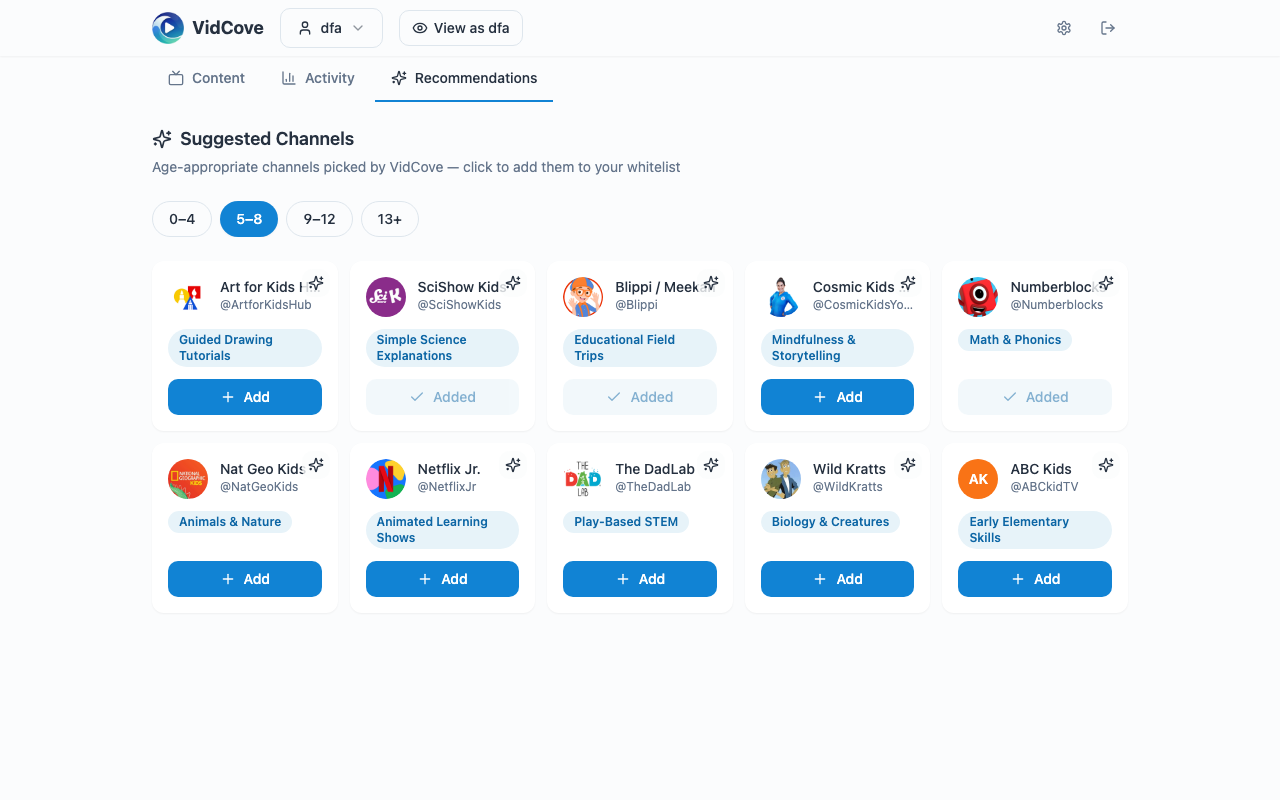
Creating an account and your first child profile takes about 2 minutes. Adding channels depends on how many you want to start with — most parents begin with 5–10 channels they already know and trust, which takes another 5 minutes. VidCove also has suggested channels organized by age group to help you get started quickly.
The bottom line
YouTube Kids is a good product that works well enough for a lot of families — especially those with younger children who are happy with age-filtered content and don't mind the algorithm being in charge. It's free, it's familiar, and it's available everywhere.
VidCove is for parents who tried that and wanted more control. It's for families where the algorithm led to content they weren't comfortable with, where Shorts was becoming a problem, or where they wanted to see exactly what their kids were watching. It costs more (though there's a free tier), it requires more setup, and it's on fewer platforms. But it puts you in the driver's seat in a way YouTube Kids doesn't.
I built VidCove because my family needed the second thing. Yours might not — and that's fine. The important thing is making a deliberate choice rather than defaulting to whatever came pre-installed.
See the difference for yourself
Try VidCove free with 1 child and 10 channels. No credit card required. Set up takes 5 minutes.
Try VidCove Free →