How to Block YouTube Shorts for Kids in 2026
YouTube Shorts is designed to keep people scrolling — and it's especially effective on kids. Here's every method to disable or block Shorts, what actually works, and what doesn't.
If you're reading this, you probably already know the problem. Your kid opens YouTube to watch a Minecraft tutorial or a science experiment, and within minutes they're deep in the Shorts feed — swiping through an endless stream of content you never approved, can't preview, and can't control.
You're not alone. One parent on a popular parenting forum put it bluntly: "Not allowing a limit on Shorts within YouTube Kids feels borderline criminal to me." Another: "I don't want my kid to see Shorts AT ALL. It shortens their attention span one short at a time."
The good news: in January 2026, YouTube finally added the ability to block Shorts. The bad news: it only works for supervised teen accounts, not younger children on YouTube Kids. If your kid is under 13, you're still mostly on your own.
I spent the last year researching every method available. Here's what actually works, rated honestly.
What's in this guide
Why YouTube Shorts is different from regular YouTube
Parents instinctively feel that Shorts is worse than regular YouTube — and the data backs them up. Shorts isn't just short videos. It's a completely different content delivery system designed around infinite scroll, auto-play, and algorithmic recommendations optimized for engagement over everything else.
Here's why it matters for kids specifically:
- No pre-screening possible. With regular YouTube videos, you can preview what your child watches. With Shorts, new content appears every swipe — there's nothing to preview.
- The algorithm moves fast. Research from the Mozilla Foundation found that 71% of inappropriate content users encountered on YouTube came from the recommendation algorithm, not from searches. Shorts is 100% algorithm-driven.
- Attention span impact. Multiple studies have linked short-form video consumption to reduced attention span in children. Parents consistently report behavioral changes — difficulty focusing, increased irritability, "zombie mode" — after extended Shorts sessions.
- No meaningful parental controls. Until January 2026, there was literally no way to disable Shorts while keeping regular YouTube accessible. Even now, the controls are limited.
Method 1: YouTube's built-in Shorts controls
YouTube's new parental controls (Jan 2026)
In January 2026, YouTube rolled out new parental controls that let parents set a timer for Shorts viewing, or block Shorts access entirely. Parents can also set custom bedtime reminders and "take a break" prompts.
The catch: These controls only work for supervised teen accounts managed through Google Family Link. If your child is under 13 and using YouTube Kids, these controls don't apply to them. YouTube Kids has its own Shorts-like content, and there's no toggle to disable it.
How to set it up (for supervised teen accounts)
- Open the YouTube app on your device (not YouTube Kids) and sign in with your parent account.
- Tap your profile picture → Settings → Family Center.
- Select your child's supervised account.
- Under screen time controls, look for the Shorts timer option.
- Set a time limit, or toggle Shorts off entirely.
This only works if your child has a supervised Google Account managed through Family Link, and they're using the main YouTube app (not YouTube Kids). For children under 13 on YouTube Kids, this method doesn't help.
Method 2: Google Family Link
Screen time limits via Family Link
Family Link can set overall app time limits and enforce YouTube's Restricted Mode. But it cannot specifically target Shorts — it's all or nothing for the YouTube app.
The catch: Restricted Mode uses a blacklist approach (tries to block known bad content) rather than a whitelist approach (only allows approved content). It misses a lot. And it can't distinguish between long-form videos and Shorts.
Family Link is worth having set up as a baseline, but it won't solve the Shorts problem specifically. Think of it as a safety net with large holes — better than nothing, but far from complete.
Method 3: Browser extensions
Remove YouTube Shorts (Chrome extension)
Extensions like Remove YouTube Shorts for Chrome or Enhancer for YouTube for Firefox can hide the Shorts tab, remove Shorts from the homepage, and filter Shorts from search results.
The catch: Only works in desktop browsers. Has zero effect on the YouTube mobile app or YouTube Kids app — which is how most kids actually watch. Also, a tech-savvy kid can simply disable the extension, open an incognito window, or use a different browser.
If your child primarily watches YouTube on a computer and you can lock down the browser settings, this is a solid free option. For mobile devices (which is the reality for most families), it doesn't help. The same goes for third-party parental control apps like Bark, Qustodio, and Block Scroll — some can specifically target Shorts, but they're all layering controls on top of an app that's fundamentally built to keep people scrolling. They can reduce exposure, but they don't give your child a truly different experience.
"But can't you just use YouTube Kids' Approved Content mode?"
This is the most common pushback I hear, and it's fair — YouTube Kids does have an "Approved Content Only" mode that lets you whitelist specific channels and videos. In theory, it solves the Shorts problem because it strips everything down to what you've manually approved.
In practice, it has real limitations that most parents discover after they've already committed to the setup:
- It's buried and unintuitive. To enable it, you need to open the YouTube Kids app (not the web version, not Family Link), tap the lock icon, solve a math problem, enter your Google password, find your child's profile, tap Edit Settings, and select "Approve content yourself." Managing your approved list later requires navigating back through the same maze. There's no quick way to add a channel you just found — you have to go through the parental settings flow every time.
- It only works in YouTube Kids — and your tween has already outgrown it. YouTube Kids is designed for children under 12, but most kids feel like they've outgrown it by age 8 or 9. The interface feels babyish, the content library is limited, and channels they actually want to watch (Mark Rober, Veritasium, Crash Course) may not be available. So what's the alternative? To access real YouTube with parental controls, you need to set up a supervised Google Account through Family Link — which means creating and managing a whole separate Google Account for your child. Even then, supervised YouTube doesn't have a channel-level whitelist. You're back to broad content-level settings (Explore, Explore More, Most of YouTube) and hoping the algorithm behaves.
- The 8-to-13 dead zone. This is the age range where YouTube's options fall apart. YouTube Kids is too young, but supervised YouTube requires a Google Account and doesn't exist until age 13 in many configurations. A 10-year-old who wants to watch Mark Rober's full channel — entirely appropriate content for their age — either can't find it on YouTube Kids, or needs a parent to set up and manage a Google Account with Family Link just to access the main YouTube app with limited controls. That's a lot of infrastructure for something that should be simple: "let my kid watch these specific channels."
- Not all channels are available. YouTube Kids has a smaller content library than regular YouTube. Some channels your kid might want to watch simply aren't in the YouTube Kids catalog, and there's no way to add them. Parents in Google's support forums regularly report being unable to find specific channels when trying to approve them.
- No way to filter Shorts within an approved channel. This is the big one. If you approve a channel that posts both long-form videos and Shorts — which many popular kids' channels do — your child gets all of it. There's no toggle to say "yes to this channel's regular videos, but skip the Shorts." Your only workaround is to not approve the channel at all and instead manually whitelist individual long-form videos, one by one, on an ongoing basis. For a channel that uploads weekly, that's a permanent chore. Most parents give up and just approve the whole channel, Shorts and all.
- It doesn't work on all devices. Approved Content Only can't be configured on Chromecast, and the experience on smart TVs is limited. If your family watches on a TV (like most families with younger kids), you're stuck casting from a phone or tablet.
- No watch activity insights. YouTube Kids shows you what's approved but doesn't give you a useful view of what your child actually watched, for how long, or patterns over time.
YouTube Kids' Approved Content mode is a step in the right direction — it proves that parents want whitelist-based control. But it feels like a feature that was bolted on as an afterthought, not designed as the core experience. For parents who want channel curation to be the starting point rather than a buried setting, purpose-built tools do it better.
Method 4: Use a curated YouTube app instead
Use a curated YouTube alternative
Instead of trying to patch YouTube's problems, some parents switch to apps that flip the model entirely. Rather than filtering out bad content from an ocean of videos, these apps start with nothing and only show content from channels you've specifically approved.
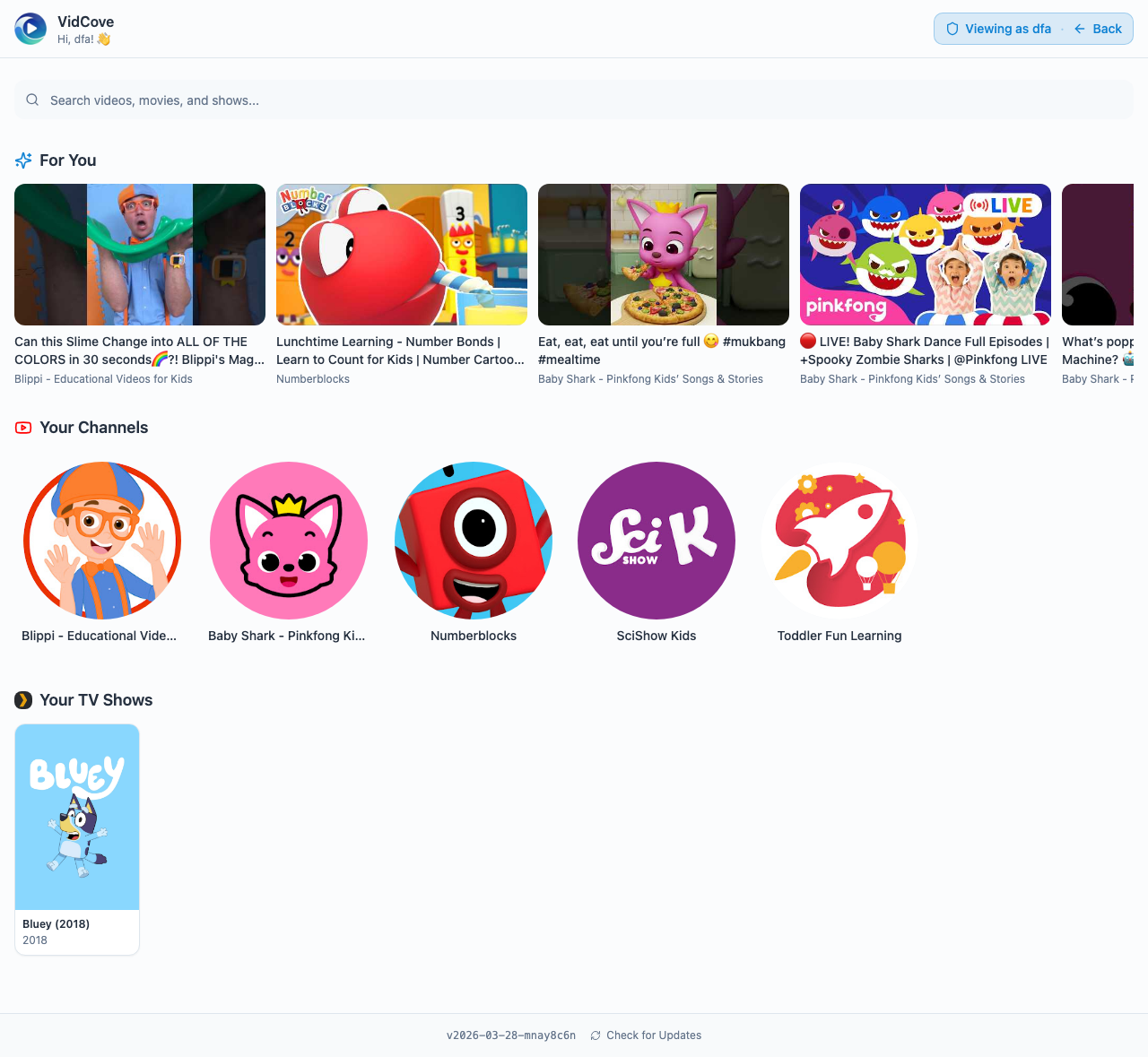
The idea: you choose which YouTube channels your kids can watch. They see the videos from those channels and nothing else. No recommendations, no Shorts feed, no rabbit holes. There are a handful of apps in this category — I built one of them, VidCove, after exhausting every other option on this list for my own family.
I'll be honest about the tradeoffs of this whole approach:
- Pro: Shorts are eliminated completely — not filtered, not limited, simply not part of the experience.
- Pro: You control the content at the channel level. Your kid watches the creators you've approved.
- Pro: No algorithm means no rabbit holes. The "For You" feed is built from channels you chose, not engagement metrics.
- Con: Your kid can't search for or discover new content on their own (though most apps have a "request" feature).
- Con: Requires upfront time from you to curate the initial channel list.
- Con: Won't work for older kids (12+) who want autonomy and social currency from watching trending content.
Comparison: every method at a glance
| Method | Blocks Shorts? | Works on mobile? | Under-13 kids? | Cost |
|---|---|---|---|---|
| YouTube parental controls | Yes | Free | ||
| Google Family Link | Yes | Yes | Free | |
| Browser extensions | Yes | Free | ||
| Third-party parental control apps | Yes | Free–$15/mo | ||
| YT Kids Approved Content mode | Yes | Yes (under 12 only) | Free | |
| Curated YouTube apps (like VidCove) | Yes | Yes | Free–$8/mo |
What I actually do for my own kids
We tried YouTube Kids first for my older kid. It was fine for a while — the content felt age-appropriate and I didn't have to think about it much. But as he got older, the cracks showed. The algorithm started surfacing stuff that was technically "kid-friendly" but clearly not what I wanted him watching. And YouTube Kids has no meaningful way to say "only these channels" without the painful Approved Content mode, which requires you to manually approve every single video.
So we switched to regular YouTube with parental controls. That was worse. The controls were cumbersome and frustrating — scattered across Family Link, YouTube settings, and device settings with no single place to manage everything. Restricted Mode missed things constantly. And Shorts was always there, one swipe away from whatever he was supposed to be watching.
The whole experience made me want to take YouTube away entirely. Which led to big fights. My kid didn't understand why he couldn't watch the channels his friends were watching. I didn't have a good answer other than "because I can't trust the app to keep you safe." That's a terrible position to be in as a parent — choosing between your kid's happiness and your peace of mind.
I searched for something that would let me say "yes to these channels, no to everything else" without the friction. I couldn't find it. So I built it. VidCove started as a tool for my own family — I pick the channels, my kids see the videos from those channels, and there's no algorithm, no Shorts, and no way to wander into the broader YouTube ecosystem. It's not the right solution for every family, but it's what finally ended the YouTube fights in mine.
My recommendation by age group
Ages 2–7: Use a curated app
At this age, kids don't need discovery or autonomy. They're happy watching the same channels repeatedly. A curated app where you pick the channels and they watch the videos is the simplest, safest approach. No Shorts, no algorithm, no surprises.
Ages 8–12: This is the hard one
This is the age range where YouTube's options fall apart. YouTube Kids feels babyish — your kid knows it, their friends know it. But moving to supervised YouTube means setting up a separate Google Account through Family Link, managing another set of credentials, and losing the channel-level whitelist entirely. A 10-year-old who wants Mark Rober and Crash Course shouldn't need a Google Account and a prayer that the algorithm behaves.
A curated app is the cleanest solution here. Your tween gets the channels they actually want — including channels that aren't available on YouTube Kids — without the Google Account overhead and without the algorithm. If they need broader YouTube access for a school project, you can supervise that separately.
Ages 13+: Supervised YouTube with Shorts controls
Teens will resist a locked-down app. YouTube's new parental controls finally let you block or limit Shorts on supervised teen accounts. Combine that with open conversations about content consumption and you've done what you can.
The bottom line
YouTube Shorts is fundamentally at odds with what most parents want for their kids. It's optimized for engagement, not safety or development. And while YouTube has started adding controls, they're limited to supervised teen accounts — leaving parents of younger children to piece together their own solutions.
The good news is you have options. The right one depends on your child's age, how much control you want, and how much setup time you're willing to invest. There's no perfect answer, but anything is better than the default.
Want Shorts gone for good?
VidCove gives your family YouTube without the algorithm, without Shorts, and without the worry. You choose the channels. Your kids watch the videos. That's it.
Try VidCove Free →